M8 Headless Cheat Sheet

Keys to the tracker kingdom

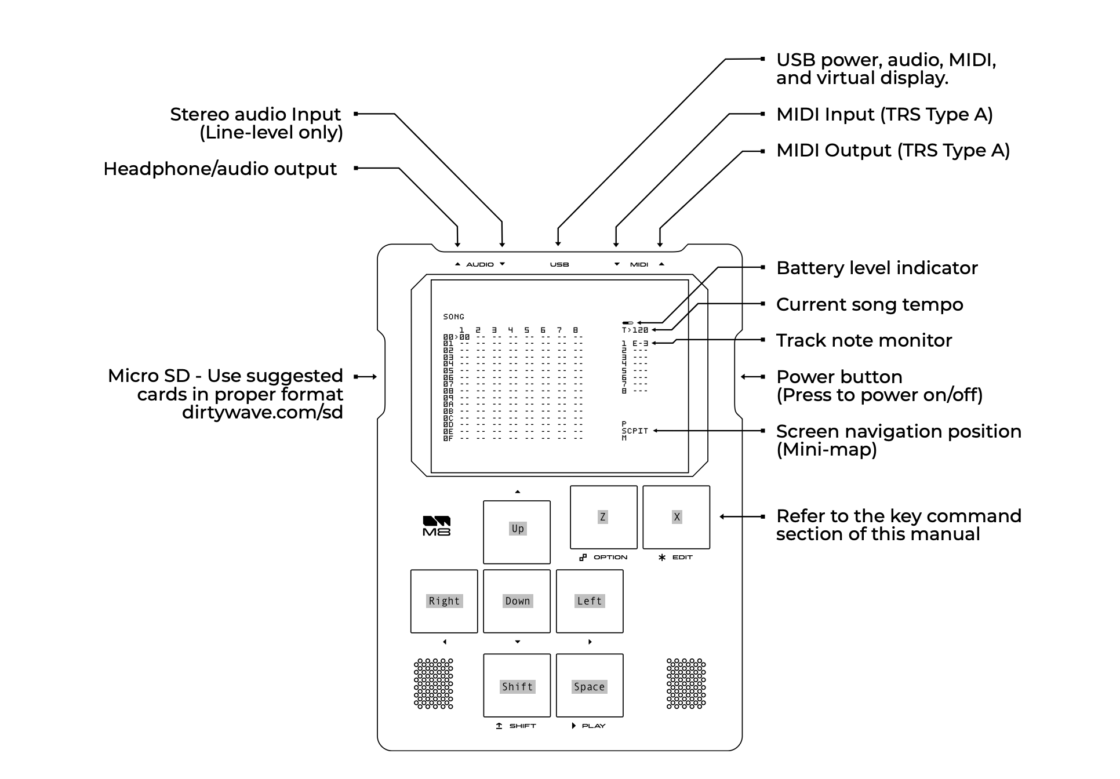
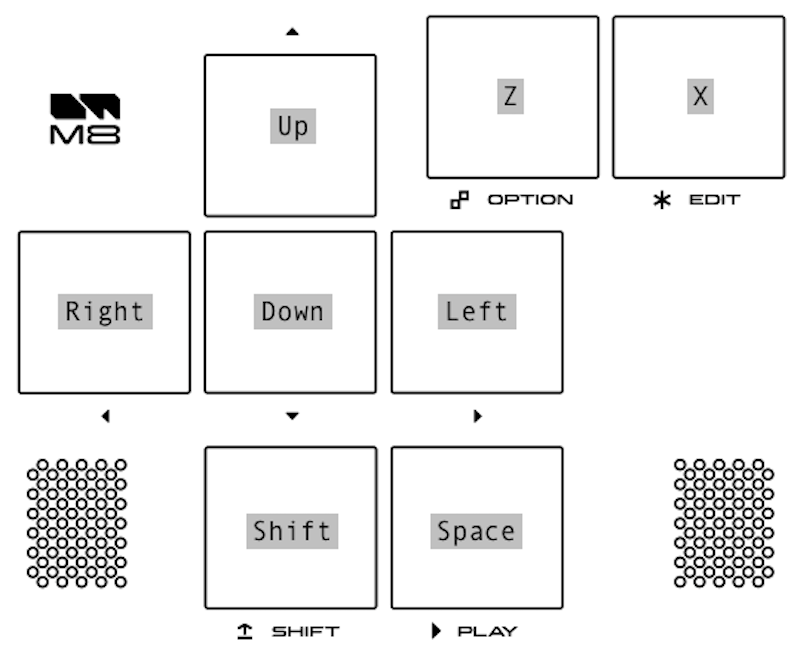
The above image is borrowed from the manual for the M8 Operation Manual. This shows the layout for the physical M8 Tracker device. The text in gray on the eight buttons on the bottom half of the device is what I’ve added to the provided image. Here is a more useful detail:

Those eight keys are, I believe, the default settings for using a computer keyboard as replacements for the physical buttons on the official M8 Tracker. From my experience with the M8 Tracker, you cradle it with both hands and control the buttons with your thumbs, though I imagine some people may rest the device on a table, or lap, and employ additional fingers.

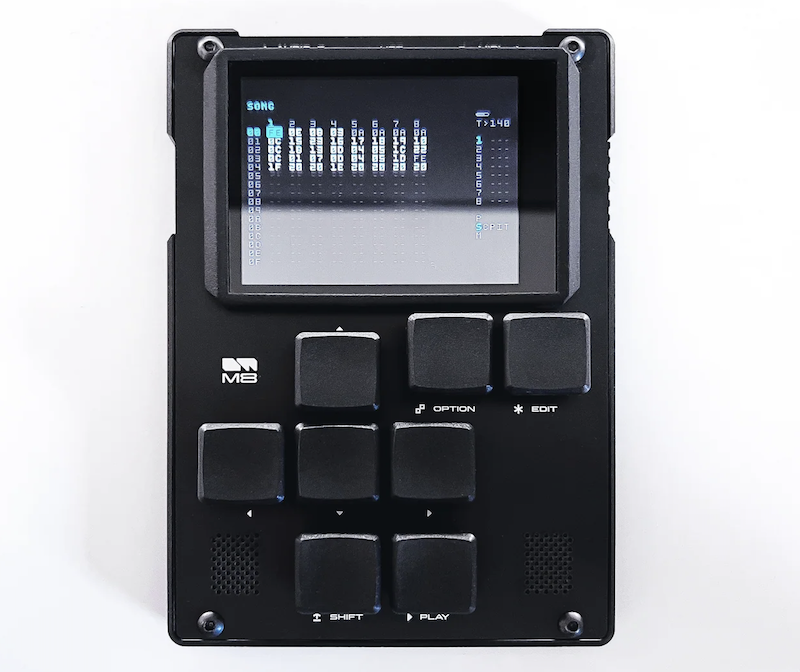
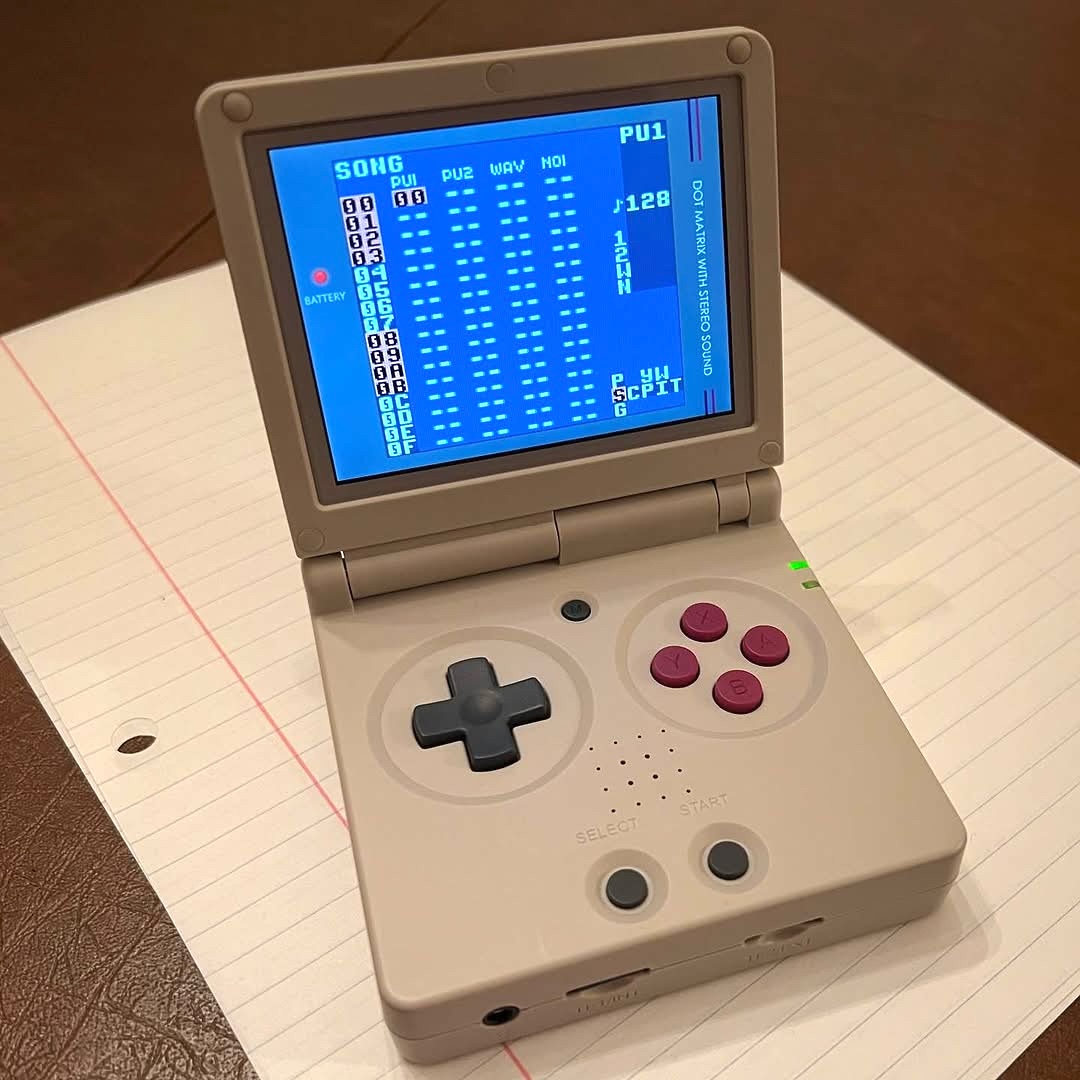
This is a picture of the first version of the M8, which is the one I have. There’s a more recent version, but the buttons are in the same place.

I’m trying to port some of my experience with the official device to running the software on a Teensy 4.1, connected to my laptop with a USB cable, as I’ve mentioned here recently. The transposition gets a little confusing, in part because I’m inclined to use more than just my thumbs on my laptop, and also because the arrow keys are on the lower right side of my laptop keyboard but on the upper left side of the M8 Tracker. Much M8 use is muscle memory.

I’ll continue to track, so to speak, as I explore the M8 Tracker further.

M8 Headless Experiment

Teensy 4.1 called into service

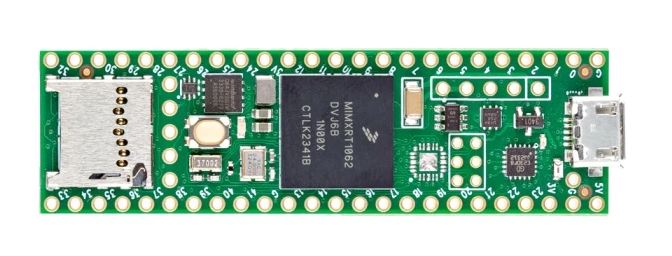
This was a satisfying series of initial steps. I have an M8 Tracker, which is a music-making device that combines a sequencer (hence the name “tracker”), a synthesizer, and a sampler, all in the palm of your hand. The M8 exists in part because of the creative opportunities afforded by the Teensy (specifically the 4.1), an inexpensive (roughly $35US) circuit board for product development.

Since the M8 runs on this common tool, and because Dirtywave, the manufacturer of the M8, makes its software available for download, you can make your own M8 equivalent pretty easily. Doing so is usually accomplished by hooking a Teensy to a game system or a laptop. I decided to try the latter, using a MacBook Pro, to begin with. This process is called a “headless” approach, though it’s not quite headless, because you’re using the game system or laptop as the screen.

The instructions, as laid out on Dirtywave’s GitHub documentation, were fairly easy to follow. I only encountered two sources of confusion:

First: Under Step 3 (“Install a M8 Display Client and Run M8 Headless”) of the headless process, there are three primary options for the Teensy to feed visuals through the laptop. However, the way it’s written out, it looked to me like the first two options had one step, whereas the third option had multiple steps. I didn’t initially understand those subsequent steps applied the first and second options, as well.

Second: I was confused that when the Teensy connected to my laptop via a USB cable, I didn’t see the SD card mounted via the MacBook’s file system. The SD card not appearing in the Finder meant I couldn’t transfer audio files, like beats and field recordings. I eventually sorted out that I needed to remove the SD card, and put it separately into the laptop in order to transfer files. Not a big deal, but this wasn’t self-evident to me. I interpreted this as a problem to be solved, not a norm I had to work around.

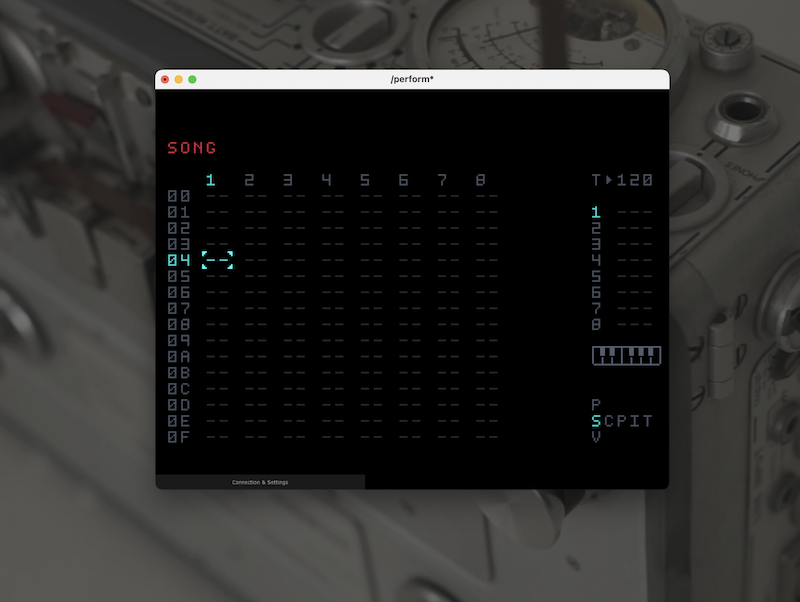
And that about covers it. The M8 Tracker is now running headless on my laptop, as shown up above. I ordered a little $10 plastic case to (somewhat) protect the Teensy 4.1, which is just a raw circuit board. And I’ll be experimenting some more.

The primary reason I did all this was because I’ve been looking into alternate firmware, and while to my knowledge there is no fork of the M8 software, this project was useful to give me some experience with flashing software to the Teensy. Also, I really enjoy my M8 Tracker, and using the headless Teensy version means I’ll have more ways to play around with the system.

“gl-i-iv-v-tched”

Lunch time, fun time

A simple drone and I IV V progression, both from electric guitar, the latter part glitched thanks to a somewhat chaotic LFO, the former frozen from a single opening chord, the combination done live in VCV Rack over lunch. Very simple, a lot of fun.

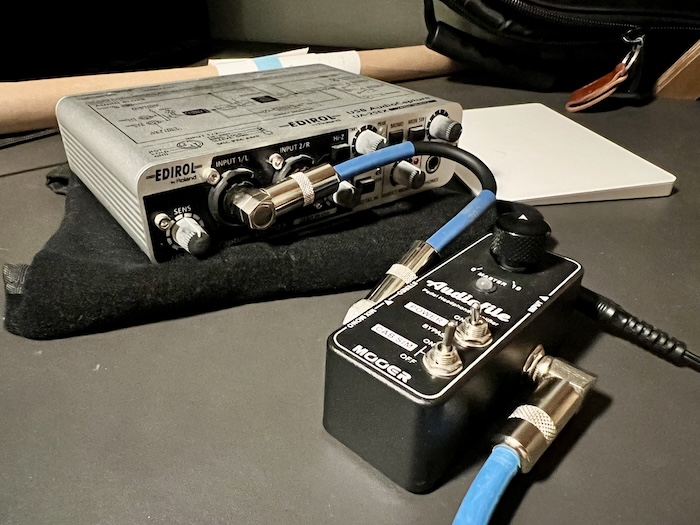
This setup has proved useful at the office. It’s an elegant way to get the guitar, via a simulated guitar amp cabinet, into the laptop:

Music Thing Workshop (KOMA Chameleon)

Radio on

A quick lunchtime experiment. The Music Thing Workshop System (the device here dressed in black) does, indeed, supply sufficient power to run the KOMA Elektronik Field Kit (the device here dressed in white), which means I can easily run the randomly sampled FM radio from the latter into the modulated filter in the former. I imagine someone will recognize some of what is being sampled in realtime, but I certainly can’t. I wrote a story for The Wire magazine a few years ago about musical instruments that contain radios, and during the research phase I learned from KOMA that the radio portion of the Field Kit might someday become a standalone module, and that happened recently (though just the FM reception, not the AM or shortwave). Anyhow, much exploring ahead.